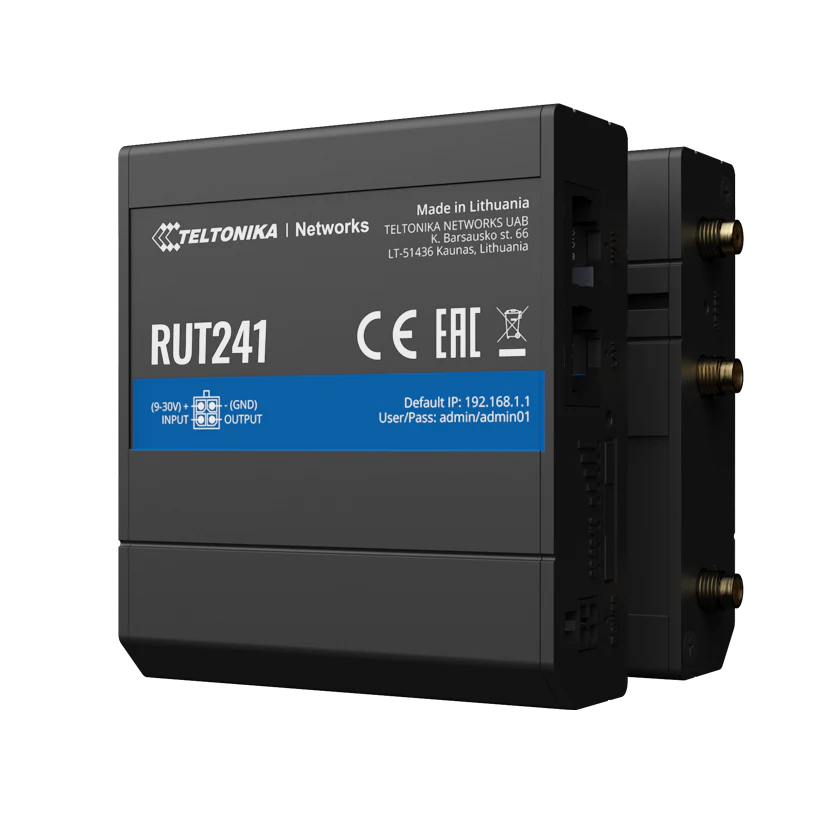
Following a cellular-network outage, some RUT240/241 modems may remain
unable to reconnect even after service has been restored. This procedure
clears the file preventing another connection attempt and restarts the
modem.
You must be near the modem.
Your phone, tablet, or computer needs to connect directly to the modem’s
Wi-Fi. Keep the modem powered on throughout the procedure.
Before you begin
Have a phone, tablet, or computer with Wi-Fi and a web browser.
Have the modem Wi-Fi and administrator passwords supplied with your
modem. If you do not have them, contact Atlantis Technologies.
Allow approximately 10 minutes to complete the procedure and verify the
connection.
1. Connect to the modem
Open your device’s Wi-Fi settings and connect to
Atlantis_RUT241_XXXX. The final
characters identify your modem.
Enter the modem Wi-Fi password supplied with the unit.
Open Safari, Chrome, or another web browser.
Enter http://10.0.100.7 in the
browser’s address bar.
Sign in with username admin and the
administrator password supplied with the modem.
If your browser warns that the connection is not private, confirm that the
address is exactly 10.0.100.7 and continue to the local
modem page. This page is provided directly by the modem, not through the
internet.
2. Find the Modem debug section
The modem interface can look different depending on its firmware and the
device you are using. Choose the example that most closely matches your
screen.
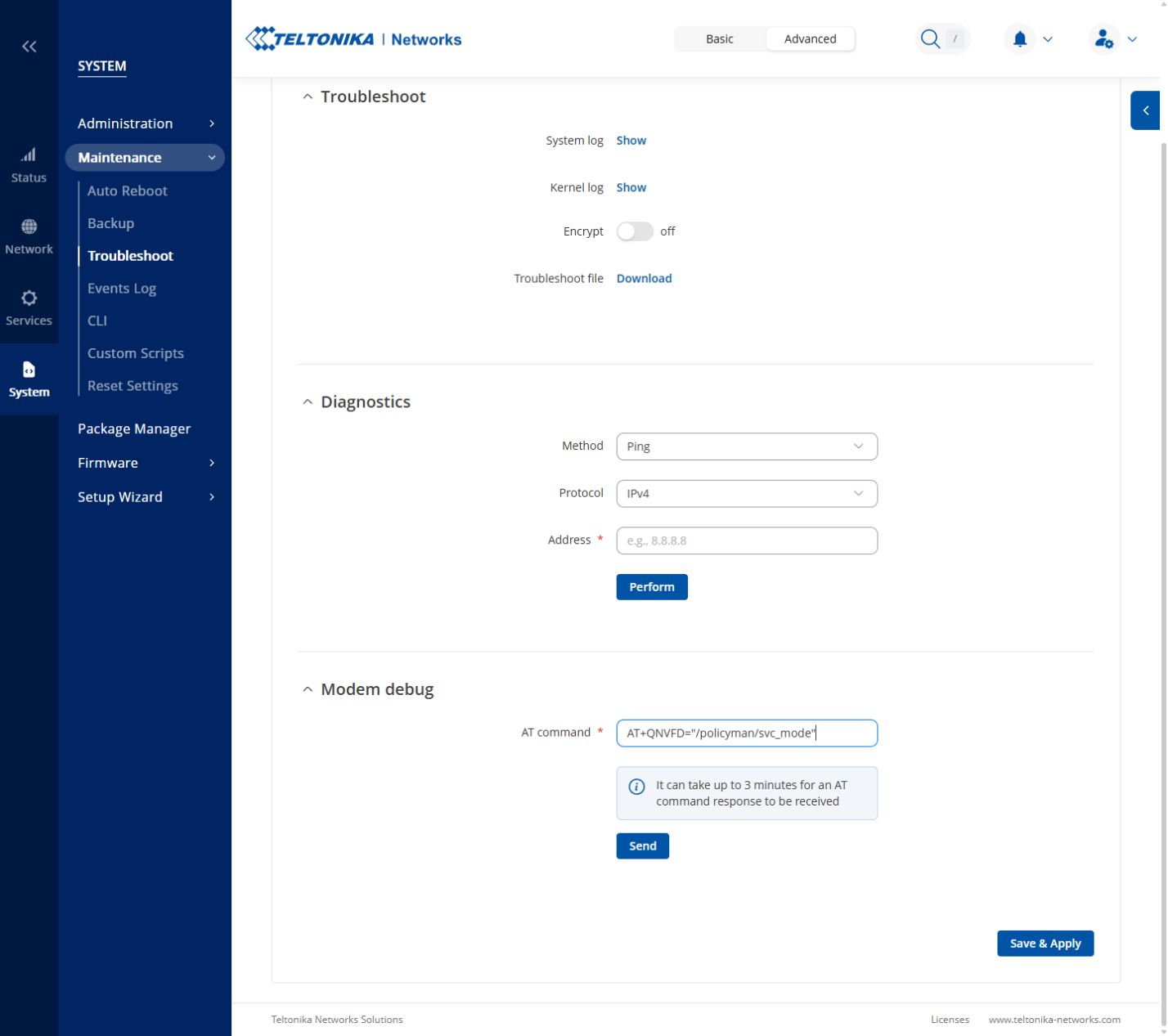
Newer desktop or tablet layout
Select System → Maintenance → Troubleshoot. Scroll
past Diagnostics to the
Modem debug section.
Newer interface: Modem debug appears as a section on the Troubleshoot
page.
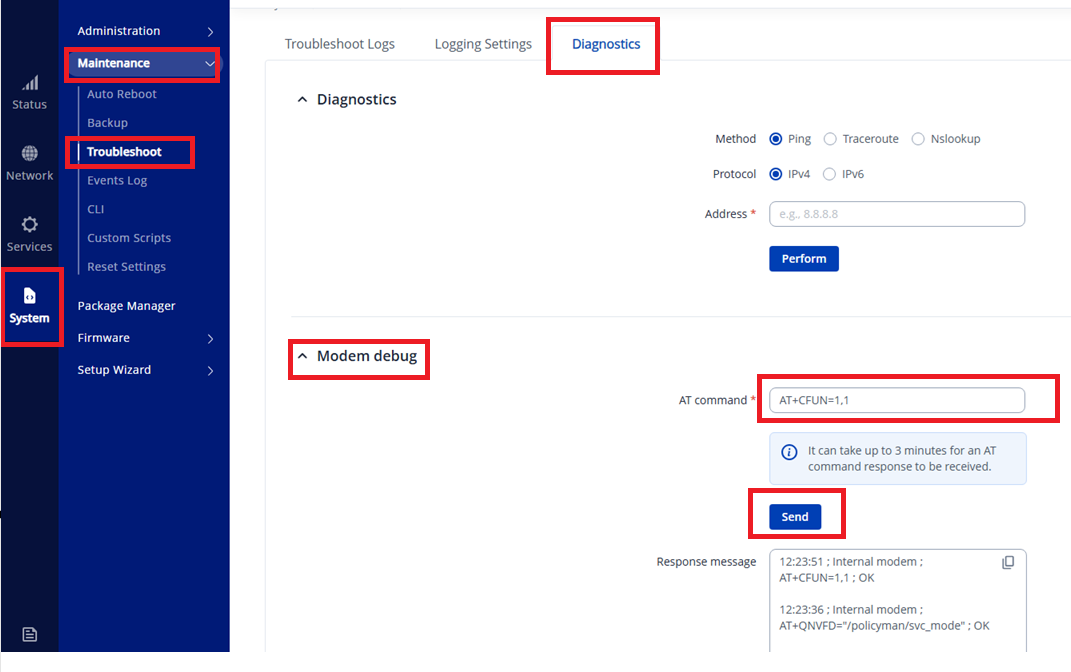
Alternate desktop layout
Select
System → Maintenance → Troubleshoot → Diagnostics,
then expand Modem debug.
Alternate interface: Diagnostics may appear as a tab across the top.
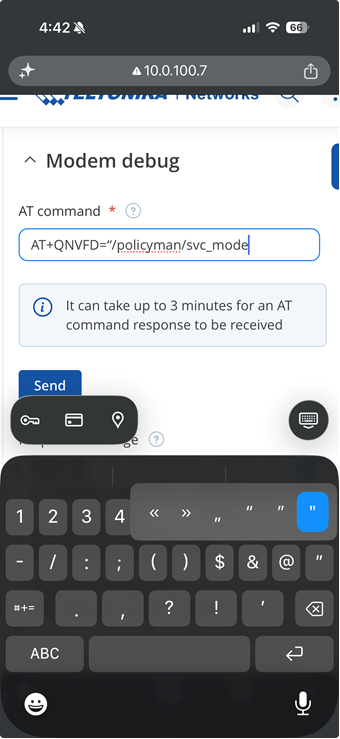
iPhone or other phone layout
Open System, tap the arrow beside
Maintenance, and select
Troubleshoot. Scroll until you see
Modem debug.
On iPhone, press and hold the quotation-mark key and choose the
straight vertical quotation mark.
3. Run Command #1
Tap or click the AT command field under
Modem debug.
Copy and paste the command below exactly as shown.
Command #1
AT+QNVFD="/policyman/svc_mode"
iPhone users: use straight quotation marks.
Command #1 requires the straight vertical mark
“, not the curly marks
“ or
”. If typing the command manually,
press and hold the quotation-mark key and select the straight vertical
quotation mark. Copying the command above is recommended.
Select Send.
Wait for the response. A successful response normally ends with
OK.
4. Run Command #2 and restart
Replace the first command with the command below.
Command #2
AT+CFUN=1,1
Select Send.
Wait several minutes while the modem restarts. The modem page may
temporarily stop responding, and your device may briefly disconnect
from the modem Wi-Fi.
If necessary, reconnect to the modem Wi-Fi before continuing.
Use the Send button for both commands. Do not select
Save & Apply.
5. Confirm that the modem is connected
Return to the modem page at
http://10.0.100.7.
Go to Status → Overview.
Select the information (i) icon beside
INTERNAL MODEM.
Find Data connection state.
Allow a few minutes for the state to change to
Connected.
If the modem does not reconnect
Confirm that Command #1 used straight quotation marks and contained no
extra spaces.
Confirm that the response to each command ended with
OK.
Wait up to 10 minutes, refresh Status → Overview, and
check the data connection again.
If the modem still does not show Connected, contact
Atlantis Technologies. You may also return the modem to us and we will
perform the procedure.